Approving, rejecting, or rescheduling posts
Written By Nick
Last updated 20 days ago
Once Social Valet has generated content for an album, you decide what goes out and when. This article covers how the lifecycle works and the actions you can take from the Posts page and inside the editor. It applies to Instagram posts, Pinterest pins, and blog posts, all of which flow through the same review pipeline.
The lifecycle
Posts and pins move through a few statuses on the way to publishing:
Needs Approval. Social Valet has generated the post or pin and is waiting for your sign-off.
Approved. You've reviewed it and given the green light.
Failed. The post or pin hit an error during publishing. Only visible when there's actually a failed item.

Two things have to be true for anything to publish: it has to be Approved, and it has to be scheduled. Scheduling alone doesn't publish an item. A Needs Approval item with a scheduled time will sit and wait. Approval alone doesn't publish either. Without a scheduled time, there's nothing on the calendar to trigger it. Both are required.
Rejected items disappear from your view. As far as you're concerned, rejecting is the same as deleting.
Approving and rejecting
You can approve or reject from two places:
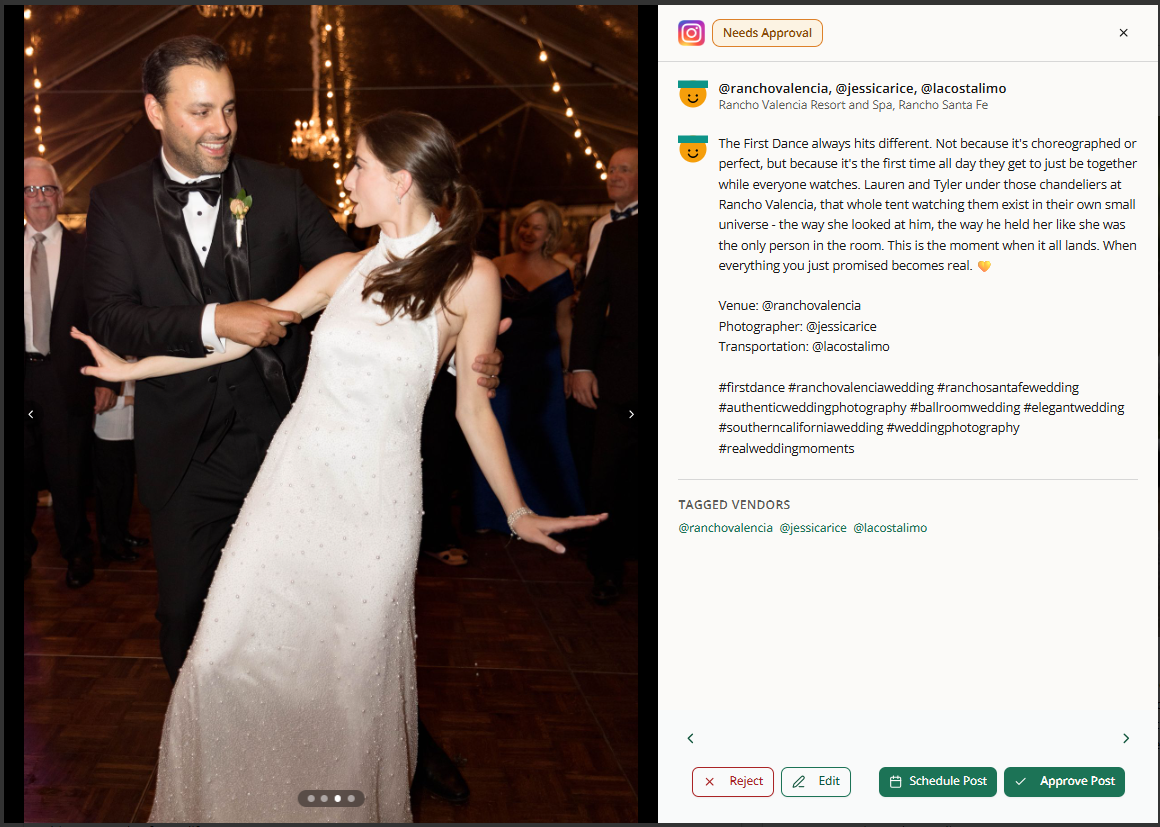
Inside the editor. Open the post or pin, make any final edits, and click Approve Post or Reject in the top bar.
The Posts page. Select one or more items, then approve or reject in bulk. Instagram posts, Pinterest pins, and blog posts can all be mixed in one bulk selection as long as they're in Needs Approval.
On the Posts page, click the select toggle to add checkboxes to each card. Pick your selection, then use the action bar to approve or reject.
Bulk approve is the fastest way through a backlog. The trade-off is that you don't get a chance to edit before approving. Bulk approves the item as-is. If you know something needs tweaks, open it in the editor instead.
Scheduling and rescheduling
Every post and pin needs a scheduled date and time before it can publish. When you approve something, it joins your Approved bench, and Social Valet assigns it an AI-suggested time during the next scheduling run. You can speed that up or set your own time:
Schedule Next 7 Days. Click this button in the editor or on the calendar to run scheduling right away instead of waiting for the overnight run. It schedules approved posts across your whole account, not just the one you're viewing. If the post you have open gets a time, its date and time update in place.
From the editor. Click Schedule Post in the top bar to pick a date and time manually.
Drag and drop on the calendar. Grab any scheduled card and drag it to a new day. Social Valet keeps the original time of day and only changes the date. On both week and month views, dragging a card in the grid also auto-adjusts the surrounding scheduled items to preserve your overall cadence. Already-published items stay locked in place.
Jump to a date on the calendar. Click any date in the mini-month picker and the week view shifts to that window, making it easy to plan further out without arrowing through weeks.
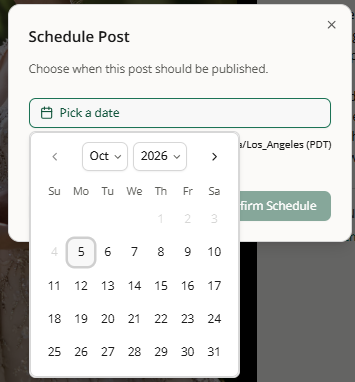
There's no bulk reschedule. Each item is rescheduled individually.
Published posts and pins are read-only. They've already gone out, so they can't be rescheduled or re-edited from Social Valet.
When something fails to publish
If something goes wrong at publish time, the post or pin moves to Failed status. From there, you can move it back to Approved, which puts it back in the publishing queue. Social Valet handles retries automatically in some situations.
For deeper troubleshooting, see My Instagram post failed to publish or My Pinterest pin failed to publish.
A note on review
Bulk approval is there because reviewing 10 items a week is reasonable and reviewing 50 isn't. But the closer you read each one before approving, at least the first few weeks, the better Social Valet learns what your "yes" looks like. Skim, don't autopilot.
If something goes wrong
Approve Post is grayed out. The item may be missing required content. Open it in the editor and make sure the caption, description, or body isn't empty.
An item stayed in Needs Approval past its scheduled time. Approval is required for publishing. Approve it and it'll publish at its scheduled time (or the next available one if the original time has passed).
You approved a post and it still has no date. It's on the Approved bench waiting for the next scheduling run. Click Schedule Next 7 Days to place it now. If it still doesn't get a date, your cadence for that platform may already be full for the week. On the Essentials plan, that's 3 Instagram posts a week.
Bulk approve only approved some of the selected items. One likely had a validation issue. Open the ones still in Needs Approval to see what's missing.
An item moved to Failed. Open it, address the issue, then move it back to Approved.
A Pinterest, blog, or TikTok post says "Upgrade to publish." You're on Essentials, which publishes to Instagram only. The post stays approved and will schedule if you upgrade to Growth.
Next steps
Was this helpful?
Still need help? Ask the team