Completing Onboarding
Written By Nick
Last updated About 14 hours ago
After you create your account and verify your email, Social Valet walks you through a short onboarding flow. It usually takes just a few minutes, and much of it is filled in for you.
You can step away anytime. If you close the tab, you'll pick up at the right step the next time you log in.
What onboarding covers
There are four steps:
Create your account. Your login and email verification. See Creating your account.
Connect Instagram. So Social Valet can learn about your business and how you write.
Your business. Confirm or fill in your business details.
Choose your plan. Pick a plan and start your 14-day free trial.
Then you go straight into your first album.
Step 2: Connect Instagram
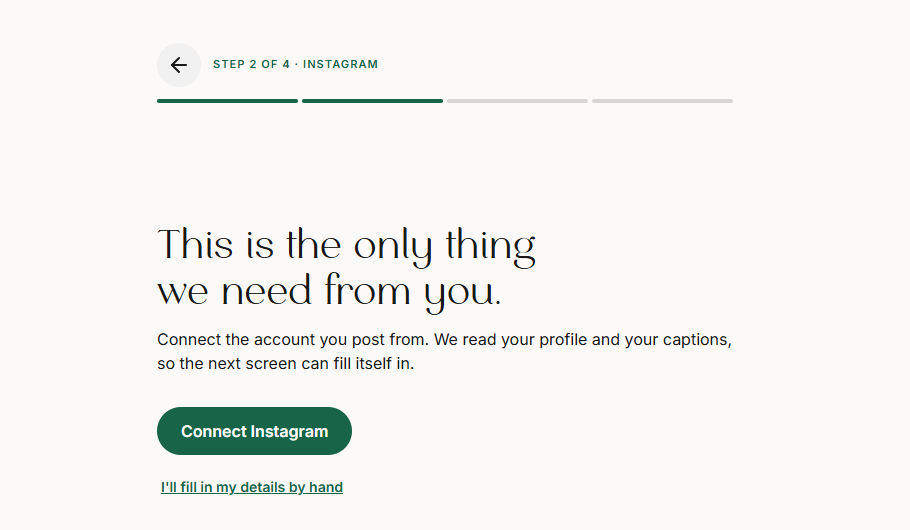
Connect the Instagram account you post from. Social Valet reads your profile to fill in your business details and starts learning how you write from your captions.
A few things to know:
Social Valet can't read your messages.
Nothing posts without your approval.
You can disconnect in one click from Settings → Platform Management.
Social Valet works with Instagram Business and Creator accounts. See Connecting your Instagram account for details.
Once you've connected, you'll see a short screen while Social Valet reads your profile. Continue appears as soon as it's done.
Prefer not to connect yet? Choose I'll fill in my details by hand and go straight to the next step.
Step 3: Your business
Your details appear as one sentence: "I am [name] at [business name], a [category] in [city, state], and my work lives at [website]." Click any underlined answer to change it. The category opens a list of vendor types to choose from.
What you see depends on how much Social Valet found on your Instagram profile:
Everything found. All your answers are already filled in. Check them and fix anything that's wrong.
Some found. What was found is filled in, and the rest is left blank for you. Because there was less to learn from, you'll also see a few optional ways to help Social Valet learn your voice: paste a few captions, record a voice note, or connect a blog.
Nothing found, or you're filling it in by hand. Fill in each blank. You'll see the same voice options. If you skip them, Social Valet starts with a plain, warm tone, and you shape it from your first post.
Website is the only optional field. Continue turns on once everything else is filled in. Nothing is saved to your account until you continue.
Below your details, you'll also see the option to connect Pinterest, TikTok, or your blog. You don't need to do it today, and you can connect them later from Settings → Platform Management. Pinterest, WordPress, and TikTok need the Growth or Studio plan.
Job title isn't part of onboarding anymore. You can add one later in Settings → Account if you'd like.
Step 4: Choose your plan
You'll see the three plans, Essentials, Growth, and Studio, side by side, with a monthly and annual toggle.
Growth is selected by default for your trial.
Studio is available if you run more than one business.
Essentials can't be chosen at signup. If you want it, start on Growth and switch from Settings → Billing and Subscription anytime during your trial.
The page also shows what's included in every plan and a timeline of your trial, so you know exactly when your first charge happens. Have a promo code? Click Have a promo code? to enter it. If you came from a promo link, it's already applied.
Choose your plan, and checkout opens right on the page. Enter your card and billing details. Your 14-day free trial starts right away, and you won't be charged until it ends.
See Choosing a plan: Essentials, Growth, and Studio for what each plan includes.
You're in: start your first album
Once your trial starts, onboarding is complete.
If no one has shared an album with you yet, you'll see a screen that takes you straight into creating your first album.
If another vendor shared an album with you before you signed up, you'll go straight to that album instead, with the vendor who shared it credited by name and Instagram handle. Open it to bring it into your account, or start a different album. Posts written from a shared album use your voice, not the sharing vendor's.
Nothing is scheduled or published until you review and approve it.
Your brand voice
If you connected Instagram, Social Valet learns your voice from your captions. You can add more sources (your website, writing samples, files, or a voice recording) and fine-tune your voice anytime from Settings → Brand Voice. See Training your brand voice.
If you need to come back later
If you close your browser or step away partway through, just log back in. You'll resume at the right step, and anything you've already finished, like connecting Instagram or starting your trial, won't need to be redone.
If something goes wrong
Instagram didn't connect, or you canceled. You'll return to the Instagram step. Try again, or choose I'll fill in my details by hand.
Your Instagram account is a personal account. Social Valet needs a Business or Creator account. Switch it in your Instagram settings, or fill in your details by hand for now.
Some of your details are wrong. Click the underlined answer and change it before you continue.
Continue is grayed out. Every field except website needs a value.
Your promo code wasn't accepted. It may be invalid, expired, or only for new signups. You can still continue at full price.
Card was declined. Try a different card, or contact your bank.
Next steps
Was this helpful?
Still need help? Ask the team