Uploading photos and videos to your album
Written By Nick
Last updated 3 months ago
The final step of creating an album is uploading your photos and videos. Once they're in, Social Valet analyzes each one in the background so you can review, favorite, and eventually generate posts from them.
You have three ways to add media to an album: uploading from your device, importing from Google Drive, or importing from Dropbox.
Before you start
Make sure your files meet these requirements. These apply to every upload source (device, Google Drive, Dropbox).
Photos
Formats: JPG, JPEG, PNG, or HEIC
File size: 50MB max per file
Quantity: Up to 1,000 photos per album
Videos
Formats: MP4 and MOV
File size: 500MB max per file
Quantity: No fixed per-album cap beyond overall storage, but keep total upload sizes reasonable for your connection
Videos are transcoded in the background after upload so they're ready for in-app preview and publishing to Instagram and Pinterest. This runs asynchronously, so you can keep working while it finishes.
How to upload from your device
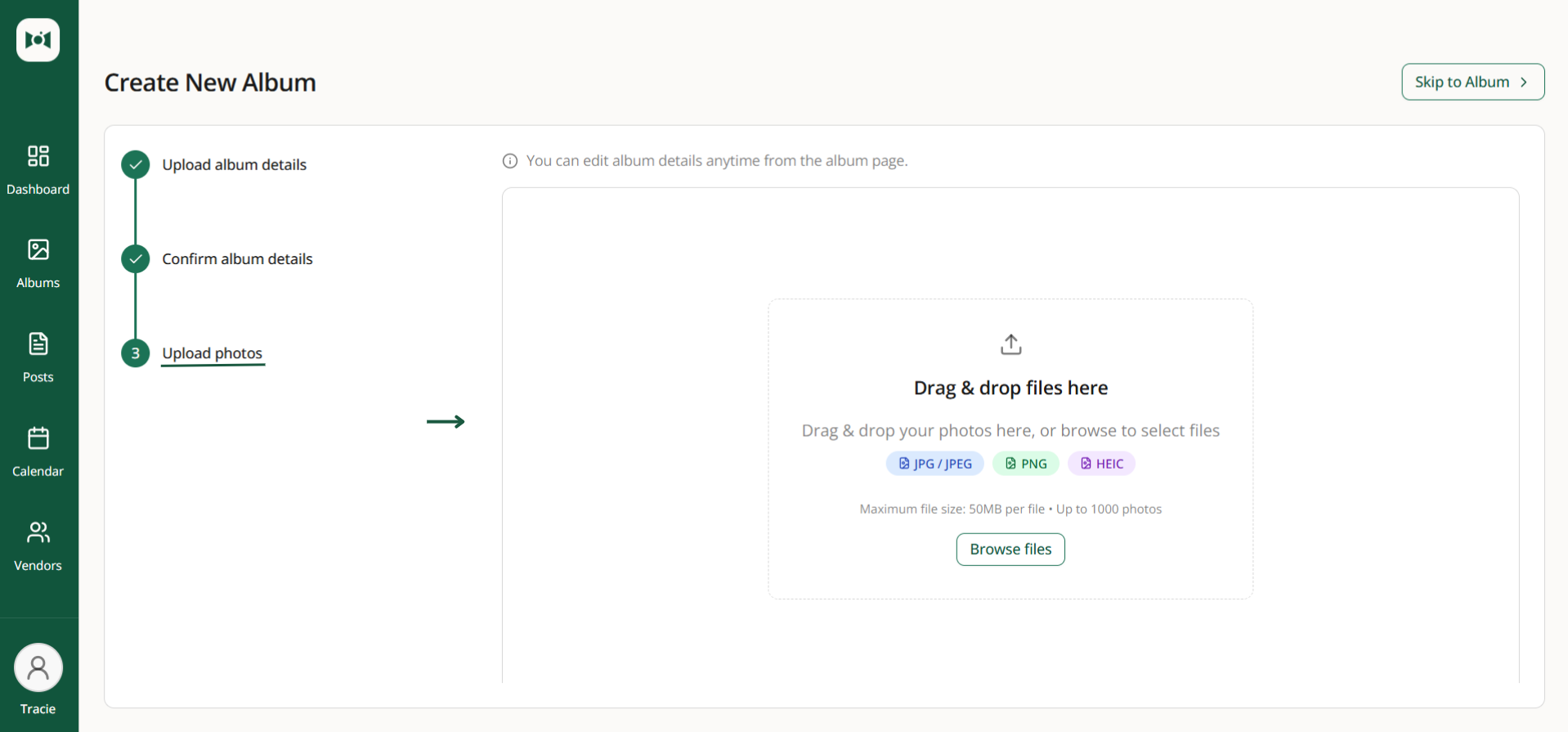
From Step 3: Upload photos and videos, drag and drop your files into the upload area, or click Browse files to select them from your computer. Photos and videos can be uploaded together.
Uploads start automatically. Watch the progress as each file processes.
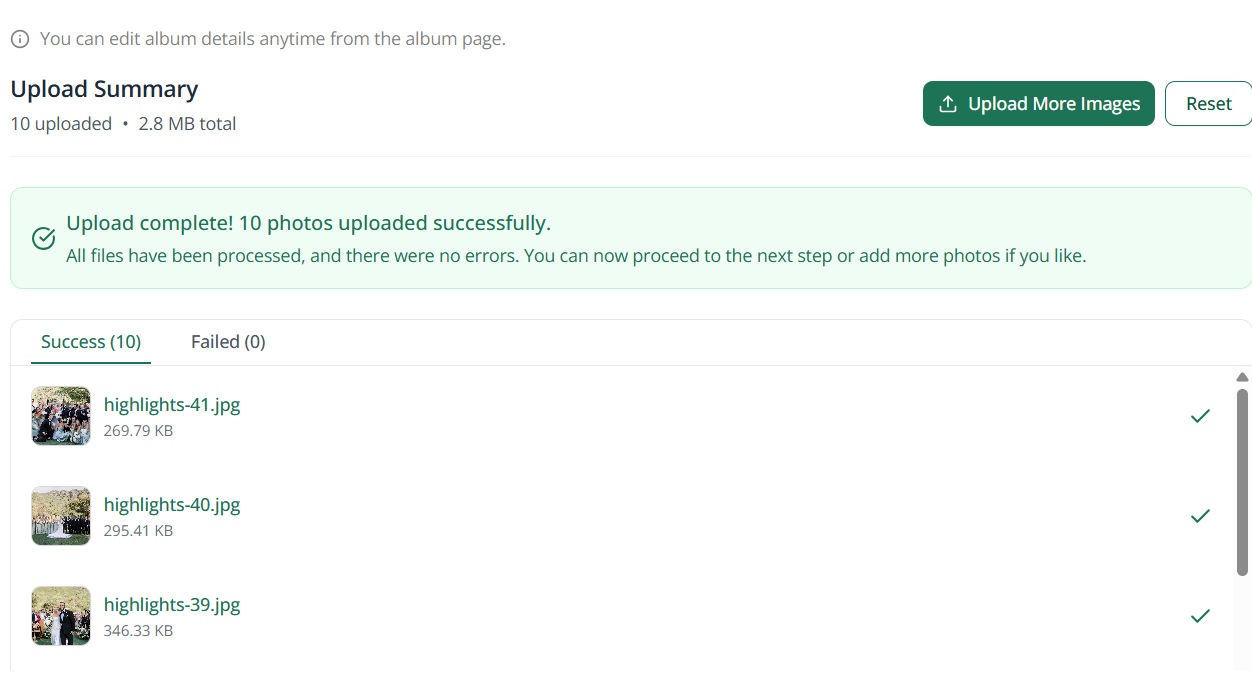
When uploads finish, you'll see an Upload complete confirmation along with a list of successful uploads.
How to import from Google Drive or Dropbox
If your photos and videos already live in cloud storage, you can import them without downloading to your device first. Click Import from Google Drive or Import from Dropbox on the same upload step, sign in to the source if prompted, pick your files, and confirm. Selected files stream into your album with progress shown in real time.
For the full picker walkthrough, see Importing photos from Google Drive and Dropbox.
If some uploads fail
Failed uploads appear under the Failed tab next to Success. Click retry on any failed file to try the upload again. This works the same way for device uploads and cloud imports.
Skipping the upload for now
Not ready to upload yet? Click Skip to Album in the top right to create the album without media. You can add photos and videos later from the album page using the three-dot menu.
Finishing up
Once your files are uploaded, click Go to Album in the top right to head to your new album.
What happens next
When you land on the album, Social Valet starts analyzing your content in the background. This usually takes a few minutes.
For each photo, you'll get:
A short description of what's in the photo
Tags
A "moment" label based on the event type (like getting ready, ceremony, or reception for a wedding)
For each video, you'll see it appear in the album media grid alongside your photos, with an in-app lightbox preview so you can watch it without leaving Social Valet. Videos are considered in AI content selection and can be used in Instagram and Pinterest video posts.
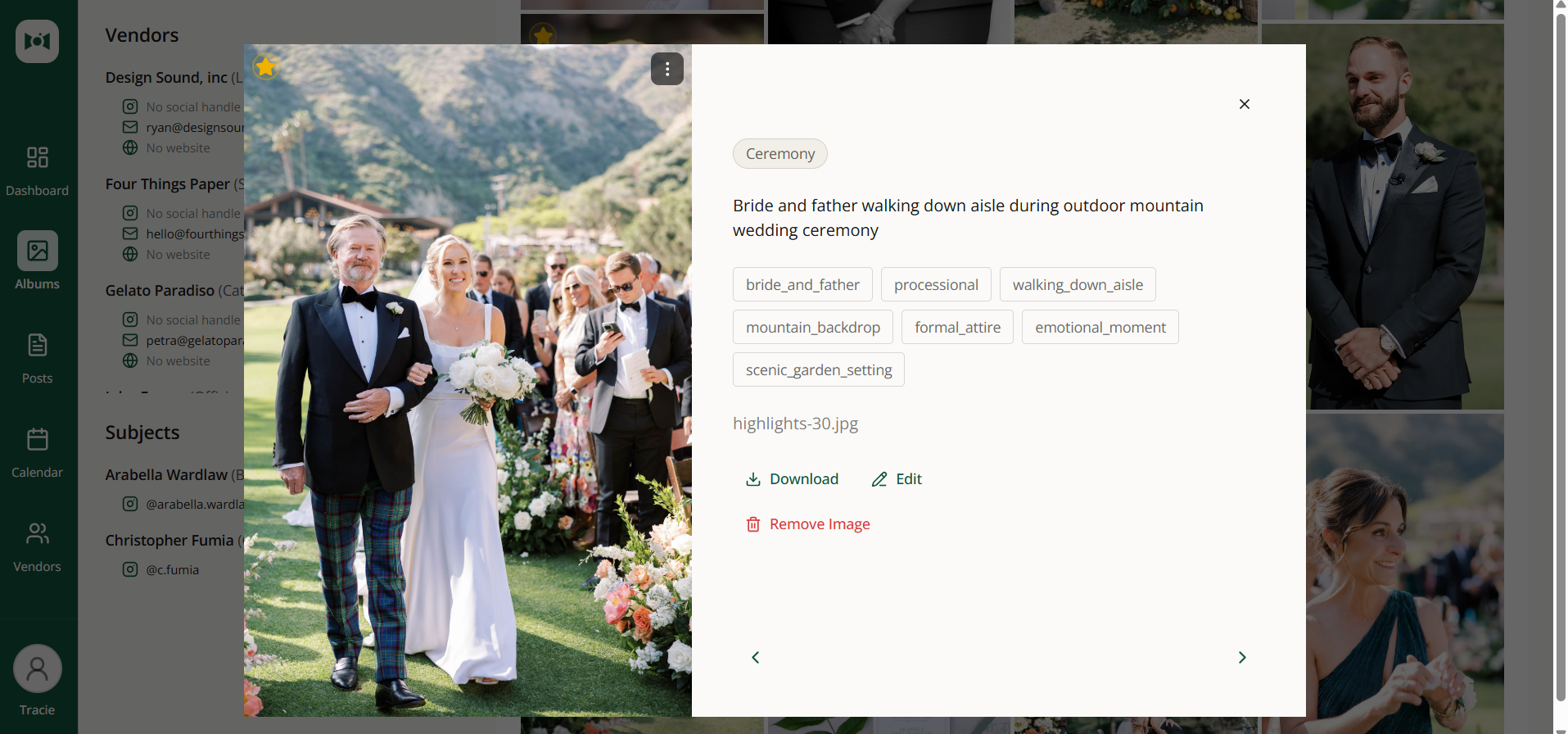
From the album page, you can:
Favorite the photos and videos you love most
Add more files or remove ones you don't want
Edit photo descriptions, tags, and moments
When the album feels right, click Start Publishing to kick off post generation. Social Valet will create Instagram posts, Pinterest pins, and blog posts based on your photos, videos, album details, and connected platforms.
If something goes wrong
A photo failed to upload. Check the format and file size, then retry from the Failed tab. HEIC files convert to JPEG automatically after upload.
A video failed to upload. Confirm the file is MP4 or MOV and under 500MB. If it's a supported format and size and still fails, try a shorter clip to isolate whether the issue is with the specific file.
A video uploaded but won't play in the lightbox. Transcoding may still be in progress. Give it a few minutes and refresh.
A cloud import failed for a specific file. Retry from the Failed tab. If it keeps failing, the file may be in a format Social Valet doesn't accept (see Before you start above) even if Google Drive or Dropbox showed it as a valid image or video.
Deleting a video shows a warning about scheduled posts. That's expected. Deleting a video that's already been used in scheduled posts cancels those posts so your publishing queue stays accurate.
Uploads are stuck or slow. Large batches take time, especially with video. Avoid closing the tab until the success confirmation appears.
You skipped the upload and can't find where to add files. Open the album, click the three-dot menu, and choose the upload option.