Sharing your album with a public link
Create a public web page for your album that anyone with the link can view, choose whether to show your vendors, and set an expiration when you only want the link open for a limited window.
Written By Nick
Last updated 3 months ago
Public share links give you a simple way to share a finished album with brides-to-be, add a gallery to your Instagram bio link, or send a polished view of your work anywhere on the web. Anyone with the link can view the album in their browser, no Social Valet account required.
This is different from vendor sharing. Vendor sharing invites a specific person to import the album into their own Social Valet account. A public share link is a browser URL you can post publicly and revoke whenever you want.
When to use a public share link
Adding a gallery to your Instagram or website link tree
Sharing a preview with a bride, groom, or planner ahead of a full delivery
Featuring a wedding in a portfolio without hosting it separately
Anywhere you want a polished view of the album without the recipient needing an account
If instead you want a specific vendor to be able to pull the album into their own Social Valet account (so they can generate posts from it too), see Sharing an album with another vendor.
Before you start
The album exists in your account and has photos uploaded
You know whether you want vendor details shown on the public page (name, role, Instagram, email address) or hidden for a simpler view
You've decided whether the link should stay open indefinitely or expire on a specific date
How to create a public share link
Open the album you want to share.
In the left sidebar, click Public share link.
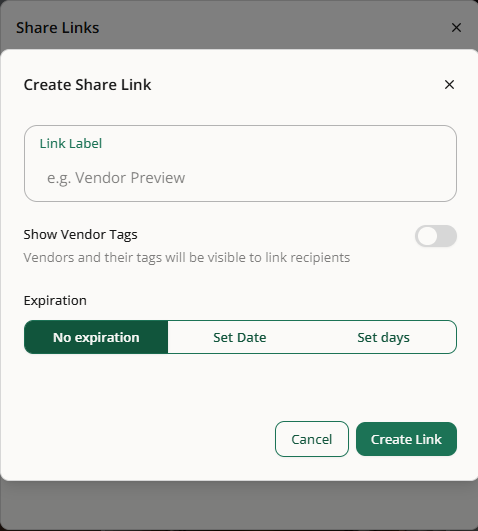
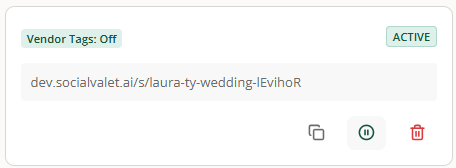
Choose whether vendors appear on the public page. Toggle on to include vendor names, roles, Instagram handles, and email addresses. Toggle off for a simpler public view that focuses on the photos.
Set an expiration. You can leave it open indefinitely or pick a date when the link should stop working.
Click Create link.
The link is generated immediately. Copy it from the same panel and paste it wherever you want to share.
Managing your public share links
From the same sidebar panel, you can:
Copy the link to your clipboard for pasting elsewhere
Turn the link off to immediately stop anyone from viewing the album (visitors will see an expired page)
Change vendor visibility if you want to add or remove vendor details after the fact
Update the expiration if you want to extend, shorten, or remove the deadline
Any album with an active public share link shows a small badge on its card in your Albums list, so you can see at a glance which albums are being shared publicly.
What visitors see on the public page
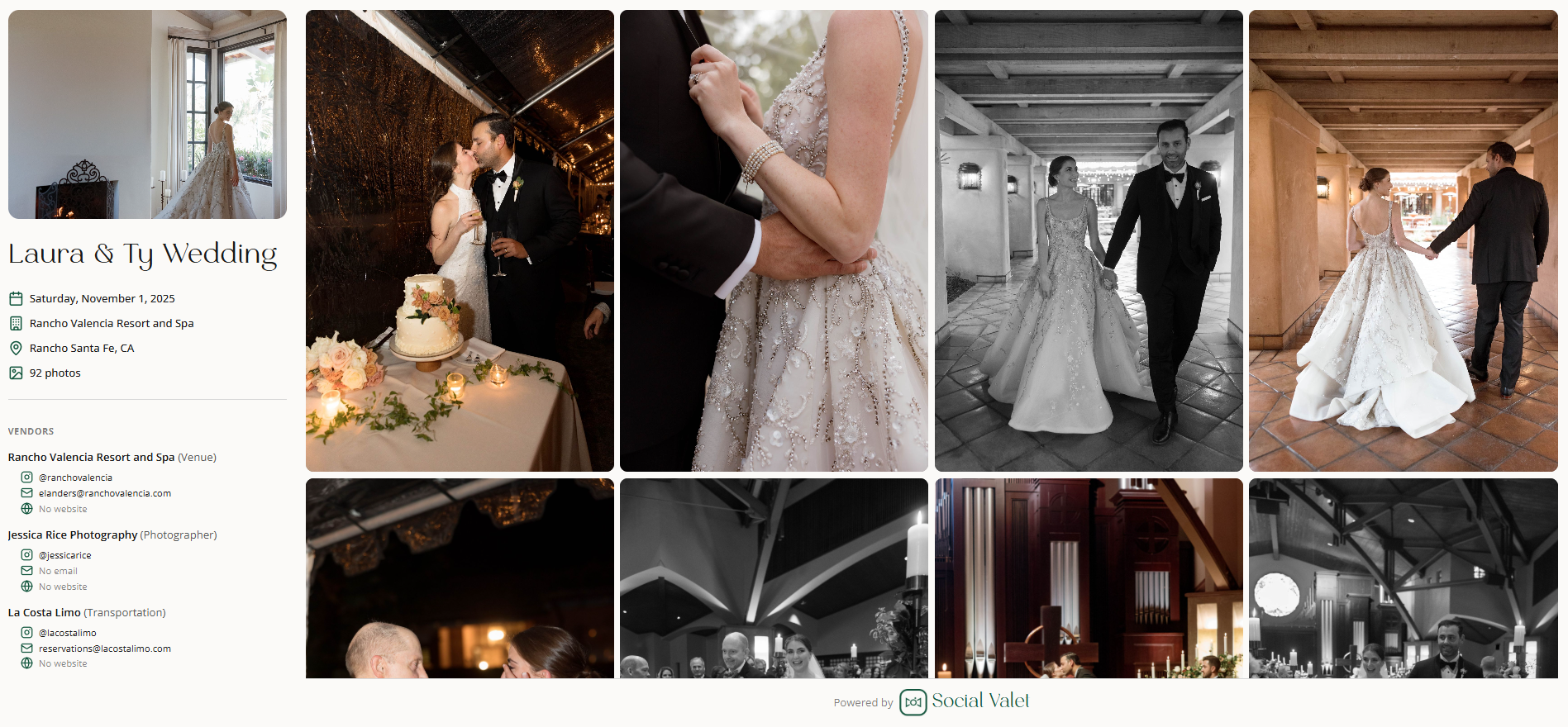
Visitors land on a clean gallery page for the album. It shows the album title, date, and photo grid, and they can click any photo to open a lightbox for a closer view.
With vendors shown, the sidebar displays each linked vendor's name, role, Instagram handle, and email address. This is a nice touch for showcasing collaborators or making it easy for a bride or planner to reach out to a team member.
With vendors hidden, the sidebar drops the vendor list entirely, leaving a cleaner focus on the photos.
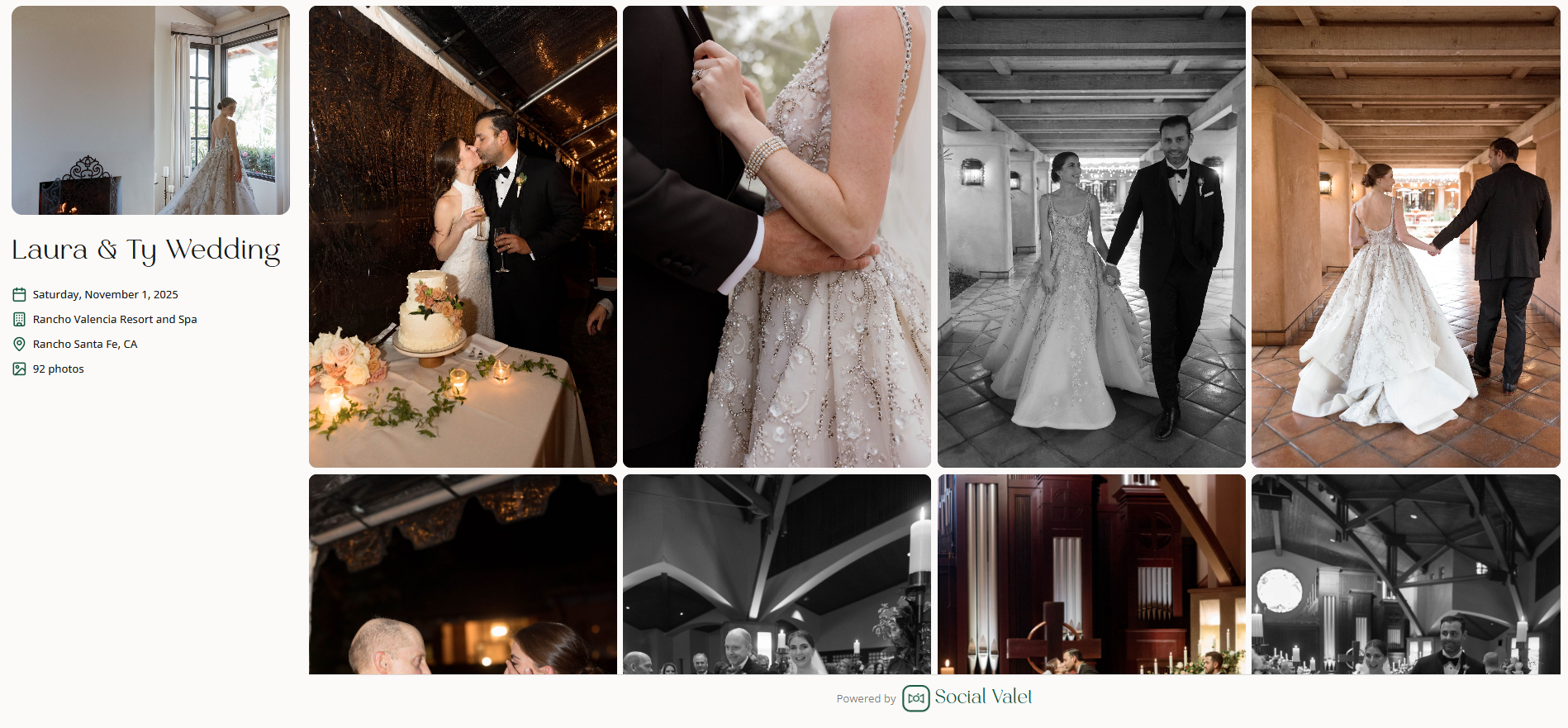
The public page is view-only. Visitors can't download photos, comment, or leave any trace in your account.
Expired and invalid links
If a link is turned off, past its expiration date, or points to an album that has since been deleted, visitors see an Expired or invalid share link page. It tells them the link is no longer available and prompts them to reach out to whoever shared it if they still want access. There's no way for a visitor to recover the link, so you keep full control of who sees what.
Things to know
Public share links are available on all Social Valet plans.
Turning a link off is immediate. Anyone who had the link cached will see the expired page on their next visit.
If you change vendor visibility or the expiration, the change applies right away to the same link. You don't need to generate a new one.
Deleting the album disables the public link. If you re-create the album, you'll need to create a new public link.
Each album has one active public share link at a time. If you turn one off and create a new one, the new link is a different URL.
If something goes wrong
The link isn't working when you paste it somewhere. Try opening it in a private browsing window to rule out anything cached in your own session. If the page shows expired or invalid, check the sidebar to confirm the link is still active and hasn't hit its expiration date.
Visitors see the expired page but you didn't turn the link off. Confirm the expiration date hasn't passed and the album still exists in your account.
The public page shows no vendors when you expected them. Check that the vendor toggle is on in the share link settings, and that vendors are actually linked to the album under Vendors in the sidebar.
You want to hand off the same link to multiple people at different times. You can. Public links aren't personal, anyone with the URL can view.