How Social Valet generates content from your albums
Written By Nick
Last updated 20 days ago
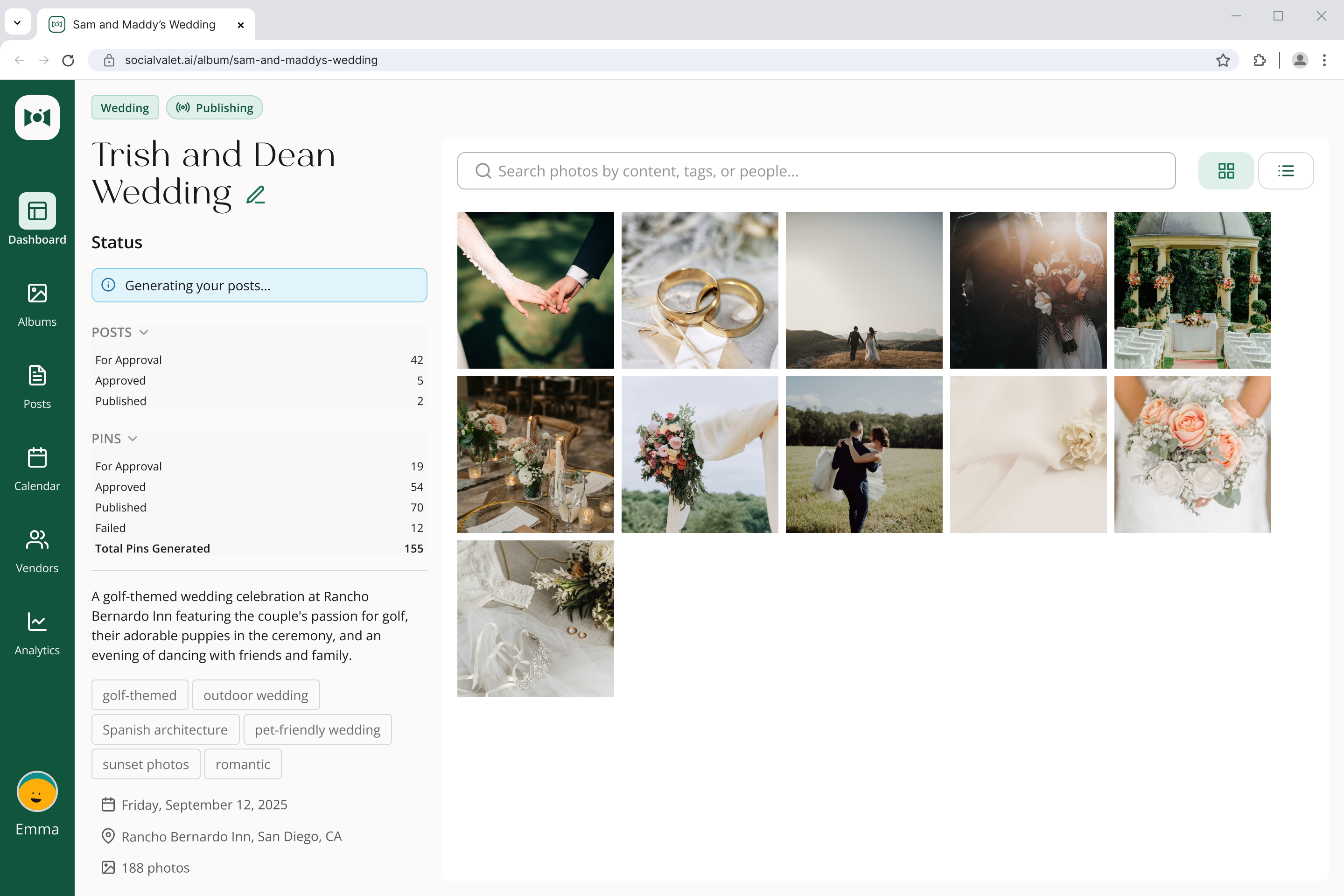
When you click Set to Publishing on an album, Social Valet starts turning your photos, videos, and album details into Instagram posts, Pinterest pins, and a blog post, written in your brand voice and ready for you to review.
What kicks off generation
Photo and video analysis happens automatically when you upload. Every photo gets a description, tags, and a moment, and videos are added to the album for use in post generation. But Instagram post, Pinterest pin, and blog post generation waits for you. Albums sit in Draft until you click Set to Publishing, which moves the album to Active and starts the generation engine.
This is intentional. AI doesn't know your couple, your venue, or what made the day feel like this day, but it knows what you've told it. The pause between upload and generation is your chance to favorite hero shots, clean up tags, and fill in the album details that turn a good caption into one that actually sounds like you.
What the AI uses
Generation pulls from three layers of inputs:
The album itself. Title, description, event type, date, venue, location, tags, vendors, and subjects.
The photos and videos. Descriptions, tags, moments, and favorites. Videos are considered in content selection alongside photos.
Your account. Brand voice (including your platform specific Instagram and Pinterest voice sections) and which platforms you have connected.
Brand voice shapes tone and writing style. If you haven't trained one yet, generation still runs using a default voice, but training your brand voice (even briefly) makes a noticeable difference.
When content is curated for Instagram and Pinterest, Social Valet also picks smart default crops for each selected photo, so the framing you see on approval is already a reasonable starting point for each platform. You can override any of those crops before you approve. See Cropping photos for Instagram and Pinterest.
What gets generated
One blog post per album. A long form recap built from the full event story.
A set of Instagram posts. The number scales with how many photos or videos are in the album, how many you've favorited, and how many posts have already been generated for this album. Video content is captioned specifically for video posts, not just recycled from photo post copy.
Pinterest pins from your album content. Pins are generated automatically and scheduled through the Pinterest daily scheduler. Each pin is assigned a Pinterest board based on the album details and your Pinterest settings.
Pinterest batch generation is resilient. If a single pin runs into a validation issue during generation, the rest of the batch still produces. You'll get the pins that succeeded, and the one that didn't simply won't appear.
If only Instagram is connected, Pinterest pin and blog generation are skipped. Same logic applies for Pinterest only or WordPress only setups. Generation runs for whatever you've connected.
How favorites factor in
Favorited photos and videos get used as the first item in carousels and the lead item on single photo or single video posts. If an album has no favorites, Social Valet picks relevant content from the album on its own. Marking favorites is the easiest way to steer which shots show up first.
Where new posts land
Generated Instagram posts, Pinterest pins, and blog posts all arrive in Needs Approval status. You'll see the count tick up in the album sidebar and on the content page. From there, the lifecycle is: Needs Approval, then Approved, then Scheduled, then Published.
Generation typically takes a few minutes after you click Set to Publishing.
When an album's posts are all used up
You don't have to keep an eye on each album's supply of posts. Once every post of one type in an album (for example, all of its Instagram posts) has been approved and scheduled, Social Valet automatically starts another round of generation for that type from the album's photos and videos.
While new posts are being prepared, the album page shows an in-progress notice so you know more content is on the way. New posts land in Needs Approval like the first batch.
If some posts of that type are still waiting in Needs Approval, or approved but not yet scheduled, the album holds off. Approve and schedule them (Schedule Next 7 Days on the calendar is the quickest way) and the next round starts.
Pausing generation
Click Stop Publishing on the album sidebar to pause further generation across every connected platform, including automatic top-ups. Already generated posts aren't affected. They stay in whatever status they're in (Needs Approval, Approved, Scheduled, or Published) and continue through the flow as normal. Click Set to Publishing again whenever you're ready to resume.
If something goes wrong
No posts appeared after Set to Publishing. Give it a few minutes, especially for large albums. See I'm not getting AI-generated posts after uploading an album for other causes.
An album isn't generating more posts. Check that every post of that type has been approved and scheduled. Anything still in Needs Approval or waiting on the Approved bench holds off the next round.
The in-progress notice has been showing for a long time. Refresh the album page. If the notice is still there and no new posts have appeared after an hour, contact support with the album name.
An album stopped producing new posts entirely. Check that it's still Active and not paused with Stop Publishing.
Posts are generating for a platform you don't use. Disconnect that platform in Platform Management and generation for it stops.
Next steps
Was this helpful?
Still need help? Ask the team