Using Social Valet on your phone
Social Valet works on mobile browsers. Here's what to expect and how to add a shortcut to your phone's home screen for one-tap access.
Written By Nick
Last updated 20 days ago
Social Valet is a mobile-friendly web app, so you can review posts, upload photos and videos, check your analytics, and manage your calendar from your phone or tablet. This article covers what works well on mobile and how to add Social Valet to your home screen so it feels like a native app.
What works on mobile
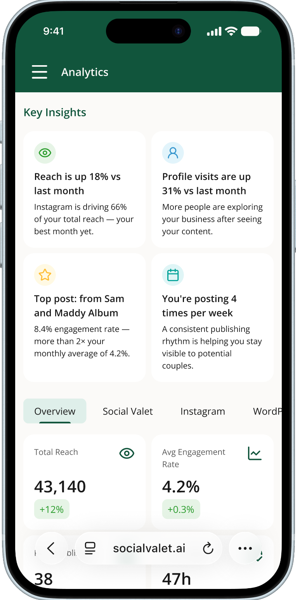
Nearly the entire platform is optimized for smaller screens:
Dashboard. See what's happening today at a glance.
Albums. Browse your album list, open individual albums, upload photos and videos.
Album creation. Full album creation flow, including uploading and details.
Posts. Review, approve, and reject Instagram posts, Pinterest pins, and blog posts. Post previews fit your screen, so you can read the full post without it feeling cramped or cut off.
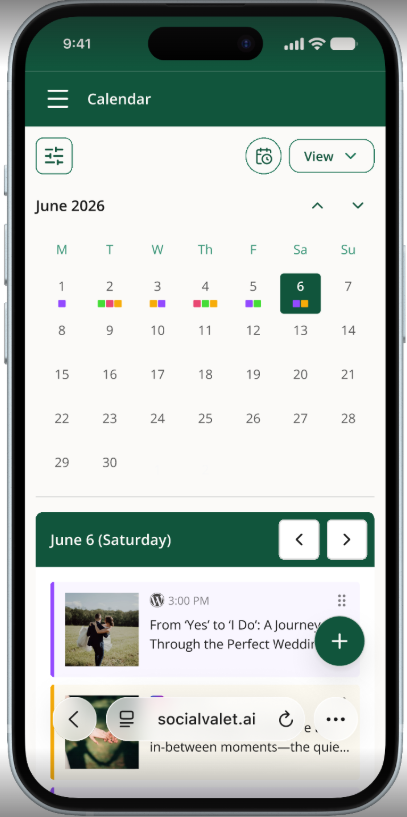
Calendar. View your scheduled content, and tap Schedule Next 7 Days to place newly approved posts right away.
Analytics. Full analytics experience, including the Overview tab, platform tabs, and the Social Valet activity tab, all reflowed for smaller screens.
Vendors. Add, edit, and manage your vendor list.
Settings. Adjust your account settings. Platform Management uses the same layout for every connected platform, so auto-approval, posting cadence, and Pinterest board settings are easy to find and change from your phone.
Brand voice training. Set up and refine your brand voice.
Album sharing and import. Share albums with vendors and import shared albums.
Blog post editing. Read and edit blog posts.
Onboarding. New user setup works comfortably on mobile.
Best-fit tasks for mobile
Some tasks are quicker on mobile than at a desk:
Approving a batch of Instagram posts during a break, then scheduling them with one tap
Uploading photos or a video from your phone camera roll directly into an album
Checking what's scheduled for the day
Glancing at Key Insights or the Overview tab in Analytics between meetings
Quick edits to captions
Flipping auto-approval on before you head out for a busy weekend
Longer sessions (writing a full blog post from scratch, training brand voice with several sources, arranging a full week's calendar) still tend to feel better on a laptop.
Add Social Valet to your iPhone home screen
Making Social Valet a home screen icon on iPhone takes about 20 seconds and gives you one-tap access, no browser navigation required.
Open Safari and go to app.socialvalet.ai.
Sign in if you haven't already.
Tap the Share button at the bottom of the screen (the square with an up arrow).
Scroll down in the share sheet and tap Add to Home Screen.
Edit the name if you want to (the default is fine), then tap Add in the top right.
You'll now have a Social Valet icon on your home screen. Tap it to open Social Valet full-screen without the Safari address bar in the way.
Note: Use Safari, not Chrome, for this on iPhone. iOS only lets Safari add sites to your home screen.
Add Social Valet to your Android home screen
Open Chrome and go to app.socialvalet.ai.
Sign in if you haven't already.
Tap the three-dot menu in the top right of Chrome.
Tap Add to Home screen or Install app (the wording depends on your Chrome version).
Confirm the name, then tap Add or Install.
Social Valet will appear on your home screen and can be launched full-screen like any other app.
Tips for mobile use
Signed-in stays signed in. You won't have to log in every time you open the home screen shortcut.
Uploads from your phone are fine. Photos and videos uploaded from a phone use the same limits as desktop (50MB per photo, 500MB per video).
Notifications. Social Valet doesn't currently push mobile notifications. Approval reminders come through email.
Rotate to landscape. For calendar week view and wider analytics tables, landscape mode gives you more room.
If something feels off on mobile
Layout looks wrong. Refresh the page. If it persists, log out and back in.
A post preview is cut off. Refresh to make sure you're on the latest version. Previews are built to fit the screen.
A button is hard to tap. Tap targets improved substantially in recent releases. If you're on an older cached version, refresh the page to pull the latest.
Upload fails from your phone. Confirm the file is a supported format and under the size limit. Cell connections can time out on larger uploads. Try again on Wi-Fi.
Next steps
Was this helpful?
Still need help? Ask the team