Importing photos from Google Drive and Dropbox
Bring photos and videos from Google Drive or Dropbox directly into your album without downloading them to your device first.
Written By Nick
Last updated 3 months ago
If your photos and videos already live in Google Drive or Dropbox, you can import them straight into your Social Valet album without downloading first. This is often the faster path when you're working from a laptop with limited storage or you've already organized your files in the cloud.
Cloud imports show up as a third option on the same upload step, alongside dragging in from your device.
Before you start
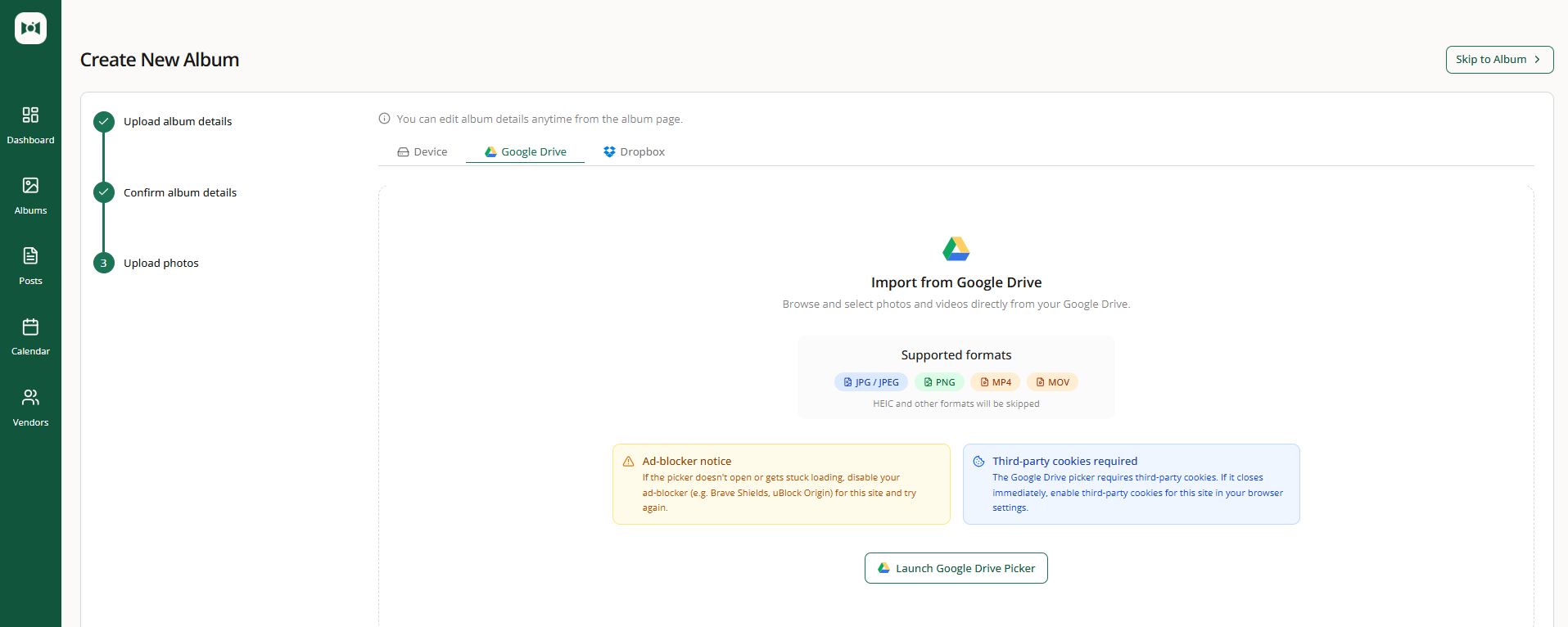
The album exists in your account and you're on Step 3: Upload photos and videos, or you're using the upload option from the album's More menu
You have access to the Google Drive or Dropbox account that holds your files
Your files meet the same requirements as device uploads:
Photos: JPG, JPEG, PNG, or HEIC, up to 50MB per file
Videos: MP4 or MOV, up to 500MB per file
Up to 1,000 photos per album
Files that don't meet these requirements are skipped during import even if the source app shows them as valid images or videos.
How to import from Google Drive
On the upload step, click Import from Google Drive.
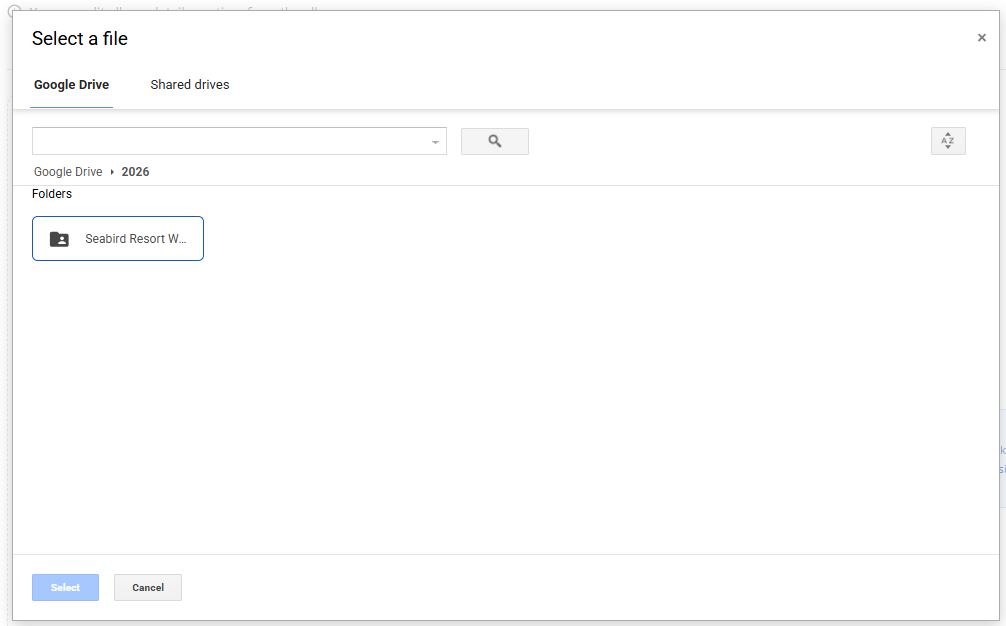
Sign in to your Google account if prompted, then grant Social Valet permission to open the picker. This is a read-only picker, Social Valet doesn't modify anything in your Google Drive.
In the picker, navigate to the folder you want and select the files or the folder itself.
Click the confirm button in the picker.
Selected files start importing into your album immediately, with per-file progress shown just like a device upload.
How to import from Dropbox
On the upload step, click Import from Dropbox.
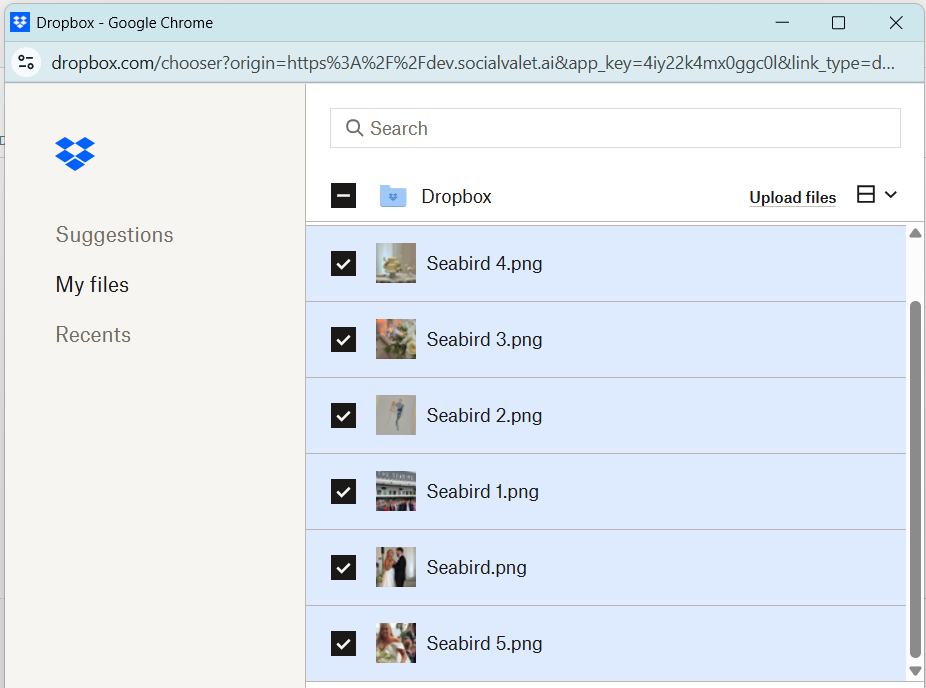
Sign in to your Dropbox account if prompted, then approve the chooser.
Select the files you want. You can multi-select across folders in the chooser.
Click Choose.
Selected files start importing into your album immediately, with per-file progress shown just like a device upload.
Progress and failure feedback
Cloud imports use the same progress display as device uploads. You'll see:
A running count of files imported
Per-file status: pending, importing, succeeded, or failed
A Success tab listing files that came through cleanly
A Failed tab listing files that didn't, with a retry button on each
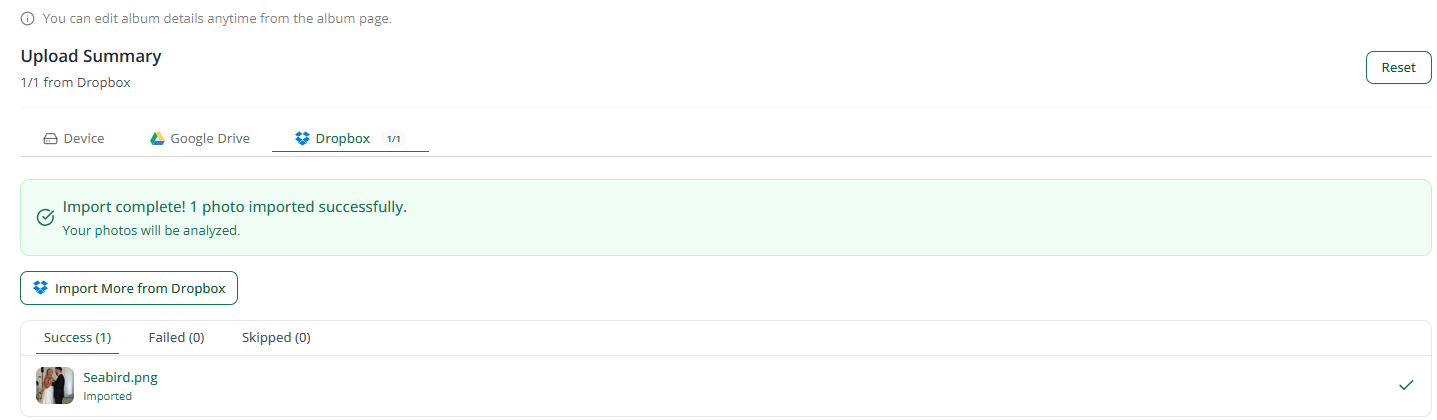
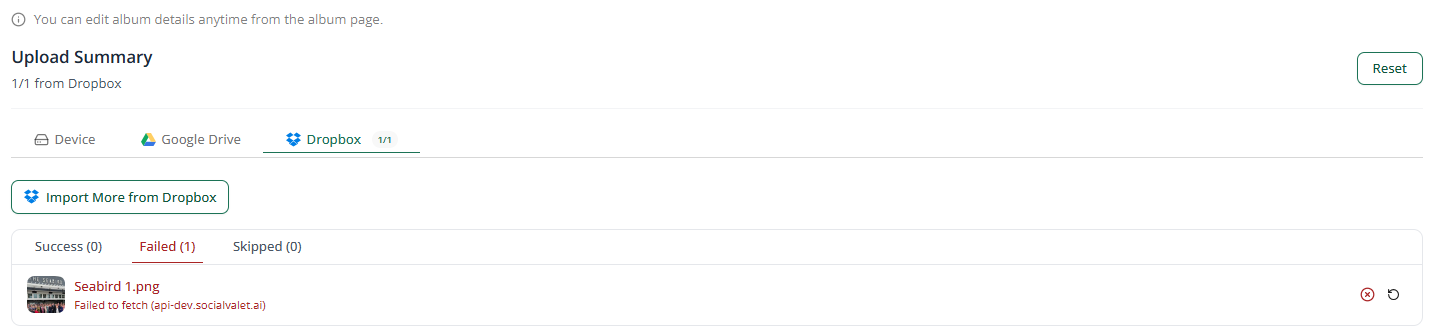
Failed files stay in the Failed tab so you can retry without having to reopen the picker or re-select everything. Retrying pulls the file from the original cloud source again.
Once every file finishes (or you've cleared the Failed tab), click Go to Album to head to your new album, or Skip to Album to keep going if you didn't need everything to succeed.
Things to know
Imports pull the file from your Google Drive or Dropbox one time and store the copy in your Social Valet album. Editing or deleting the original file in Google Drive or Dropbox does not affect the copy in your album.
You don't need to keep the Google Drive or Dropbox tab open during the import. Social Valet handles the transfer on our side.
Videos still go through background transcoding after import, same as device uploads.
You can mix sources on the same album, some files from your device, some from Google Drive, some from Dropbox.
If something goes wrong
The Google Drive picker opens but no files show up. Make sure you've navigated to a folder that actually contains supported photo or video files. Some file types (RAW files, PSD, TIFF, and so on) aren't supported and won't be shown by the picker.
A file failed during import. Check the Failed tab for the specific reason. The most common causes are unsupported formats, files over the size cap, or a temporary connection issue with the source. Retry from the Failed tab.
Dropbox chooser doesn't remember you're signed in. That's expected on shared or private-browsing sessions. Sign in when prompted each time.
You imported the wrong folder. You can delete the files from your album using the More menu, then start a new import.
The picker won't open at all. Refresh the page and try again. If it keeps failing, confirm your browser isn't blocking popups from app.socialvalet.ai.