Navigating the album page
Written By Nick
Last updated About 1 month ago
The album page is where you'll do most of your work in Social Valet, reviewing photos and videos, editing details, and triggering post generation. Click any album from the Albums page or the dashboard to open it.
What's on the page
The album page has two main areas: a sidebar on the left with all your album details and actions, and a media grid on the right.
Left sidebar
Everything about the album lives here, top to bottom:
Album type and status. Badges at the top show the event type (Wedding, Engagement, Corporate, etc.) and the album's current status: Draft or Active.
Album title. Click the pencil icon next to the title to open the edit screen for the entire album.
Status alerts. Time sensitive callouts appear here (analysis progress, posts ready for approval, or a nudge to favorite more images for cover variety). Alerts come and go as the album evolves.
Posts breakdown. Counts for posts and pins For Approval, Approved, and Published.
Description. The narrative summary of the event, either AI generated or one you've written.
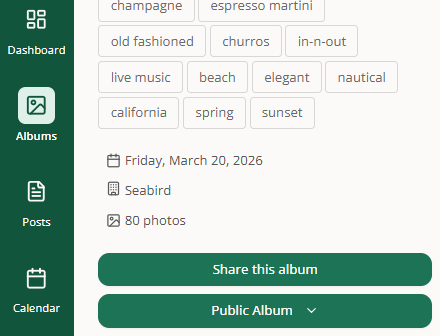
Tags. Descriptive chips that help organize albums and inform post generation.
Date, venue, location, and media count.
Set to Publishing button. The trigger that tells Social Valet to start generating Instagram posts, Pinterest pins, and blog posts from this album. Until you click this, no posts are generated.
Sharing. Two ways to share this album, each with its own button in the sidebar:
Share with another vendor. Sends an invitation email so a specific vendor or collaborator can pull the album into their own Social Valet account (or download the photos). See Sharing an album with another vendor.
Public share link. Creates a public web page for the album that anyone with the link can view, no account required. See Sharing your album with a public link.
Vendors. Read only list of vendors linked to this album, with their Instagram handle, email, and website where available.
Subjects. Read only list of people associated with the event (bride, groom, parents, etc.).
To add, remove, or update vendors or subjects, use the edit pencil at the top of the sidebar.
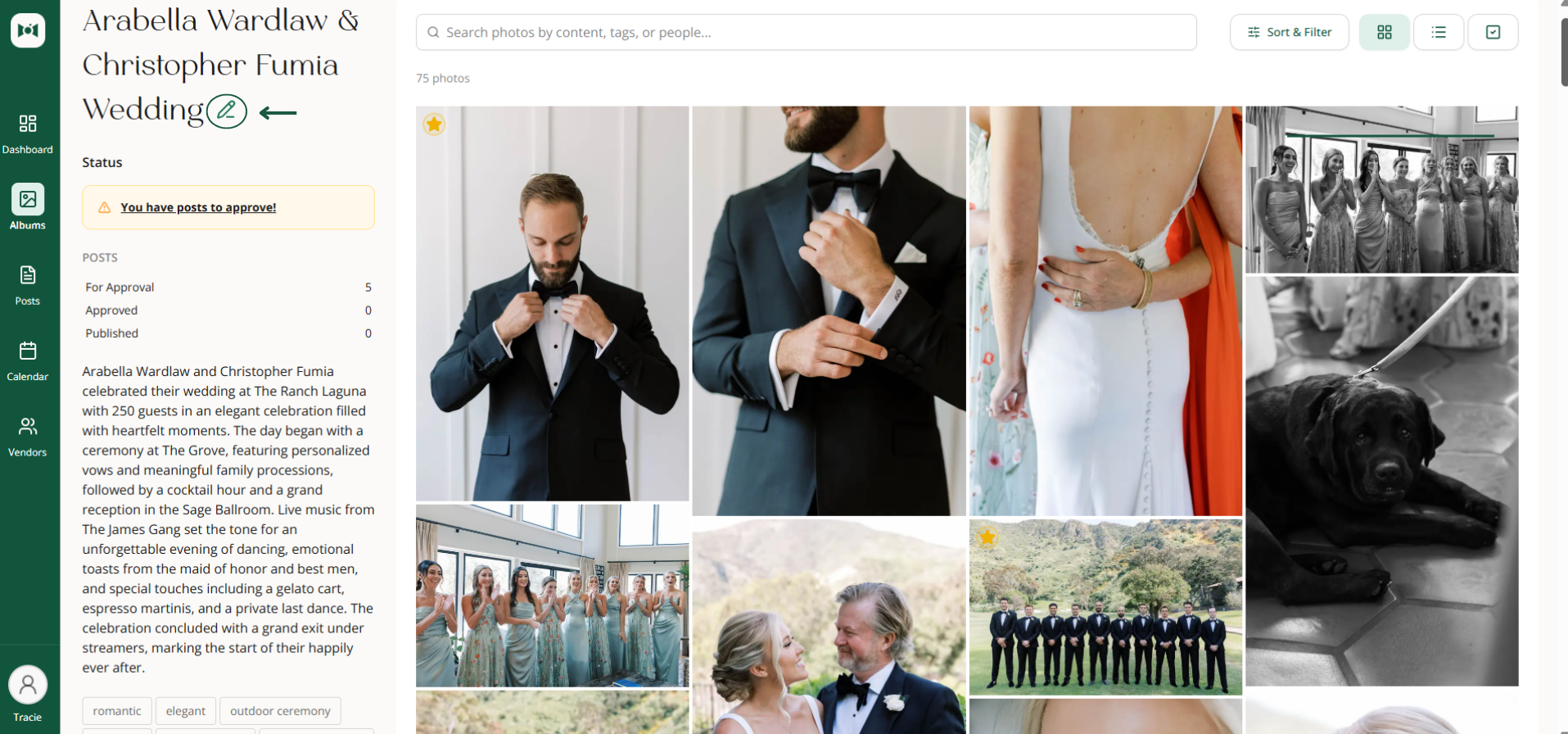
Media grid
The right side displays every photo and video in the album. Videos appear alongside photos in the grid with a visible play indicator, so you can tell them apart at a glance. Above the grid, you'll find:
A search bar for finding content by description, tags, or people
A Sort & Filter menu
Three view toggles: grid, list, and multi select
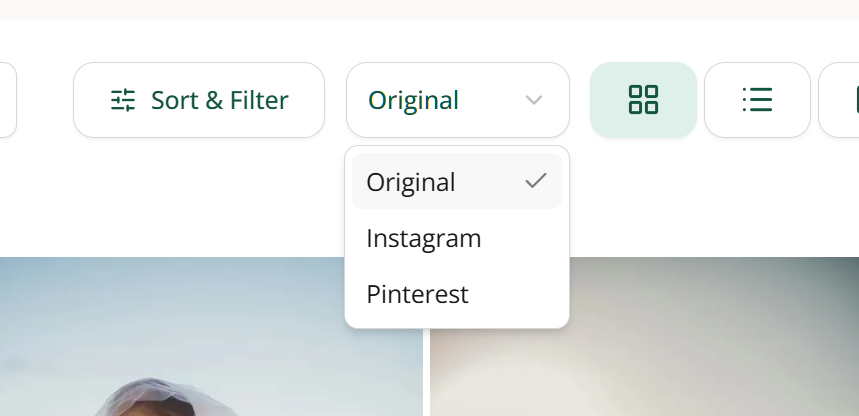
A crop view toggle with three options: Original, Instagram, and Pinterest. Switch between them to see how each photo will be framed for that platform before it publishes. Any awkward cropping is much easier to catch here than after the post goes live. See Cropping photos for Instagram and Pinterest for how to open the crop editor and adjust from either view.
Clicking a video opens the lightbox with inline playback so you can watch it right inside Social Valet without downloading or leaving the app.
Album card share badge
On the Albums list, any album with an active public share link shows a small badge on its card so you can see at a glance which albums are being shared publicly. Albums shared only with individual vendors (via the vendor invitation flow) do not show this badge, since that sharing is per recipient rather than a public link.
Triggering post generation
Albums start in Draft status. Social Valet won't generate any Instagram posts, Pinterest pins, or blog posts until you click Set to Publishing, which moves the album to Active. Once active, the button changes to Stop Publishing if you ever need to pause generation.
This step is intentional. It gives you a chance to review the album details, favorite your hero shots and videos, and clean up tags or moments before AI takes a swing at writing posts. The better the inputs, the better the output.
Album level actions
The More menu (3 dot icon at the top right of the album page) holds the album wide actions: uploading more photos and videos, downloading photos, deleting photos or videos, generating Instagram posts on demand, generating Pinterest pins on demand, archiving the album, and deleting the album.
A note on video deletion: removing a video that's already been used in scheduled posts cancels those posts automatically so your publishing queue stays accurate. You'll get a confirmation before the deletion goes through.
Item level actions
Hovering over an individual photo or video reveals a star icon (favorite) and a 3 dot menu (with Set as Album Cover for photos). Clicking a photo opens the lightbox where you can view, edit, download, or remove it. Clicking a video opens the lightbox with playback controls, and you can favorite or remove it from there too.