Managing your platform settings
Where to find each connected platform's settings, what every control does, and how to change them on desktop or mobile.
Written By Nick
Last updated 20 days ago
Every platform you connect to Social Valet has its own settings page. That's where you manage the connection, turn auto-approval on or off, and control how often content goes out. Find them all under Settings → Platform Management.
Finding your platform settings
Open Settings from the left navigation.
Click Platform Management. It expands to show a page for each platform: Instagram, Pinterest, and WordPress.
Click a platform to open its settings.
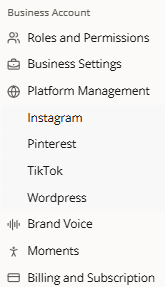
Every platform page follows the same layout, starting with an Account section at the top and then the settings for that platform. The pages work the same way on your phone, reflowed to fit a smaller screen.
If a platform isn't connected
A platform you haven't connected shows Not connected in its Account section, with a Connect button. Its other settings stay hidden until you connect it. Click Connect to start the setup flow:
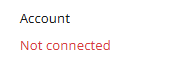
On the Essentials plan, Pinterest and WordPress show a lock instead of Connect, with an Upgrade button. See Choosing a plan: Essentials, Growth, and Studio.
Instagram settings
Account. Your connected Instagram handle, the date you connected, and a Disconnect button.
Content. Allow auto approval of Instagram posts. When on, new Instagram posts skip Needs Approval and go straight to your Approved bench. See Auto-approval: when to turn it on before you flip it.
Posting and Scheduling. Instagram posts per week controls how many Instagram posts Social Valet publishes each week:
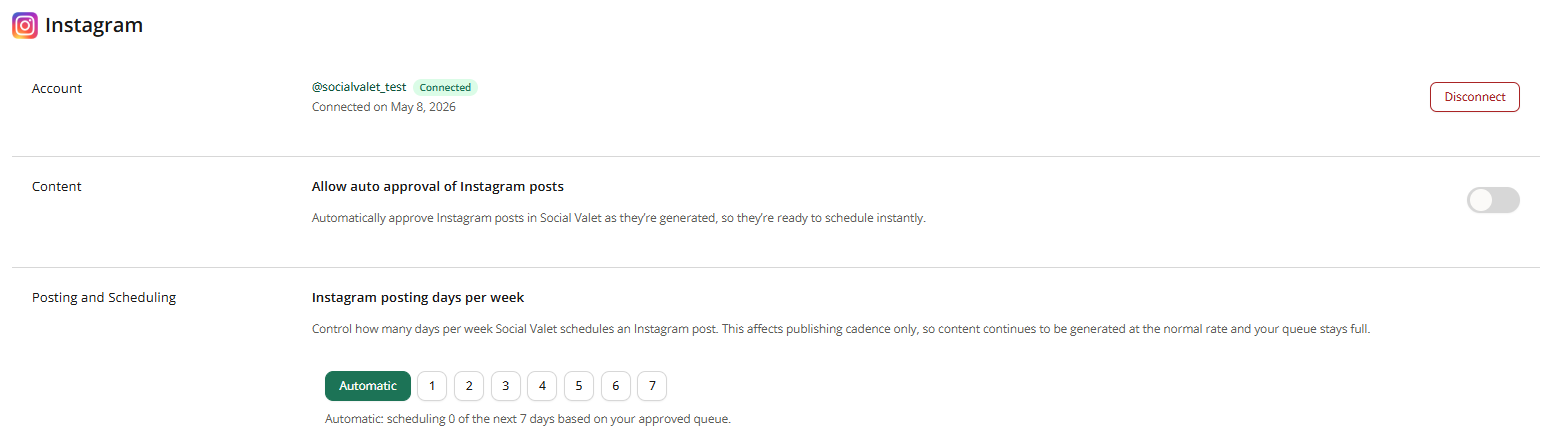
Automatic lets Social Valet decide the cadence based on how much approved content you have.
1 to 7 sets a fixed number of posts per week.
A counter shows how many posts have been published so far this week. This setting only affects how often posts publish. Social Valet keeps generating content at its normal pace, so your queue stays full.
On the Essentials plan, you can choose 1, 2, or 3 posts per week. Automatic and 4 through 7 are grayed out, and tapping one opens the upgrade options.
Pinterest settings
Account. Your connected Pinterest profile, the date you connected, and a Disconnect button.
Content.
Allow auto approval of Pinterest pins. When on, generated pins are scheduled without waiting for your review.
Daily pin cap. The most pins Social Valet will publish in a day. Pinterest recommends 3 to 8 for newer accounts and up to 25 for established ones.
Boards.
Auto-create boards. When on, Social Valet creates a new board at publish time if none of your existing boards fit a pin. When off, you'll be asked to pick or create a board yourself.
Preferred boards. Limit which boards Social Valet considers when assigning pins. Leave it empty to use all of your boards.
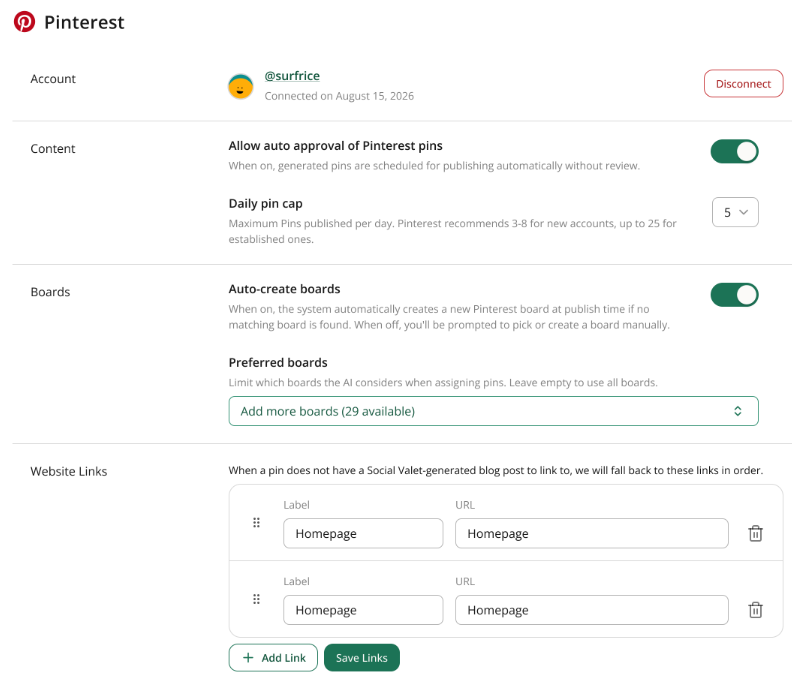
Website Links. When a pin doesn't have a Social Valet blog post to link to, it falls back to these links, in order. Each link has a label and a URL. Drag links to reorder them, and click Save Links when you're done.
For more on how boards and links get used, see How Pinterest pin generation works.
WordPress settings
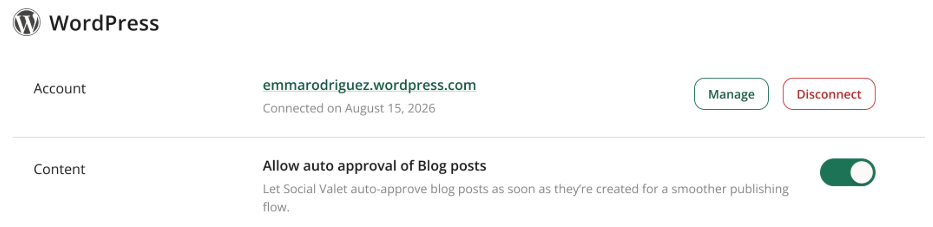
Account. Your connected site, the date you connected, a Manage button for updating connection details, and a Disconnect button.
Content. Allow auto approval of Blog posts. When on, new blog posts are approved as soon as they're created.
If something goes wrong
You don't see a setting described here. The platform probably isn't connected. Connect it and the rest of its settings will appear.
A change didn't stick. Make sure you saved it. For Pinterest website links, click Save Links after editing. Then refresh the page to confirm.
Auto-approval is off after reconnecting. Disconnecting resets auto-approval. Turn it back on in the Content section.
Instagram is posting less than you expected. Check Instagram posts per week. A low number, or a light Approved bench on Automatic, means fewer posts.
Pins are landing on boards you don't want. Add your preferred boards, or turn off Auto-create boards.
You can't pick more than 3 Instagram posts per week. You're on Essentials, which publishes up to 3 Instagram posts a week. Upgrade to Growth for more.
Next steps
Was this helpful?
Still need help? Ask the team