How album photos are ordered
How Social Valet orders the photos and videos in your albums, on public share pages, and inside post generation.
Written By Nick
Last updated About 1 month ago
The order of photos and videos in an album
The order of photos and videos in an album shapes how the album feels to look through, how Social Valet builds posts from it, and what your shared clients and collaborators see. This article covers how ordering works everywhere ordering shows up.
The default order: moment order
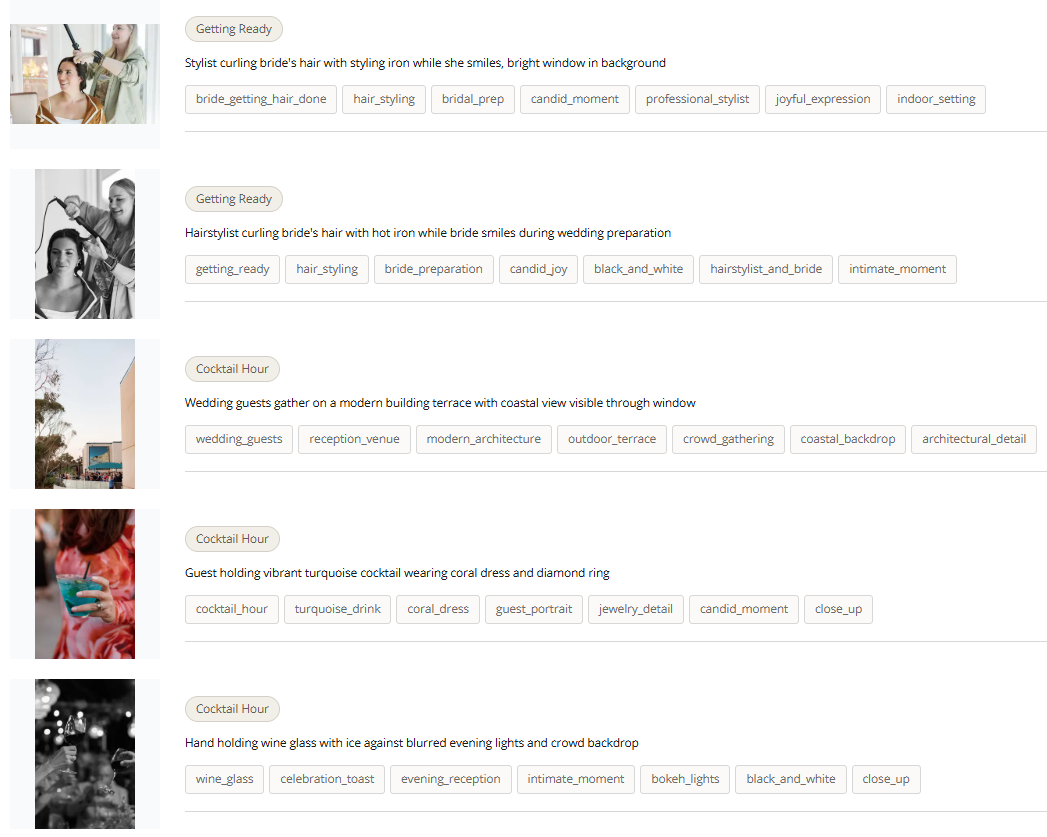
Every album displays in moment order by default. Moment order arranges photos and videos in the natural sequence of the event: getting ready, ceremony, portraits, reception, and so on. It's derived from the moment tag Social Valet assigns during photo analysis.
Moment order is the default for:
The main album grid inside Social Valet
Public album pages shared via link
Received shared albums from other vendors
Post generation, so Instagram carousels and blog posts follow the flow of the event
The old sort defaults (filename or upload order) are still available. You just have to switch to them explicitly.
Changing the sort inside the album
Open any album and use the sort control at the top of the media grid. The options are:
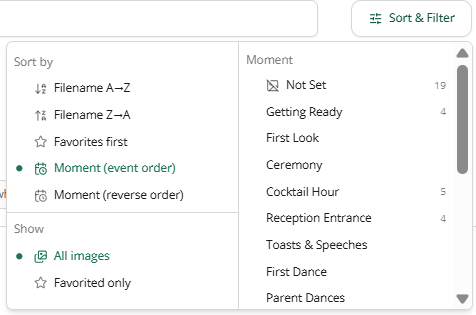
Moment order (default)
Favorites first
Filename
Upload order
Your choice persists for that album while you're on the page. It doesn't change the default that public viewers see.
What public viewers see
Public album pages (shared via link) always display in moment order. This is intentional. The people you're sharing with (couples, collaborating vendors, extended family) benefit from seeing the event in the order it happened rather than in the order the files landed on your camera card.
If you want to control the order more precisely for a shared link, see the sharing articles for tips on curating which photos are included.
How ordering interacts with favorites
Favorited photos and videos still take priority in post generation. Even in moment order, favorites within a moment tend to lead. If you want a specific hero shot to open a carousel or blog post, favorite it.
If ordering looks off
A photo is in the wrong moment. Open the photo and update its moment tag. The album grid re-sorts immediately.
Photos have no moment tag. These fall to the end of the album. Analyze the album again from the album actions menu, or set moments manually on the photos that need them.
You want a different default for one album. Change the sort control at the top of the media grid. It's remembered for that album.